Connect to Klipper
Important Note
- AirClick must be connected to the same network as the target printer.
- Click on the System Settings on the left.
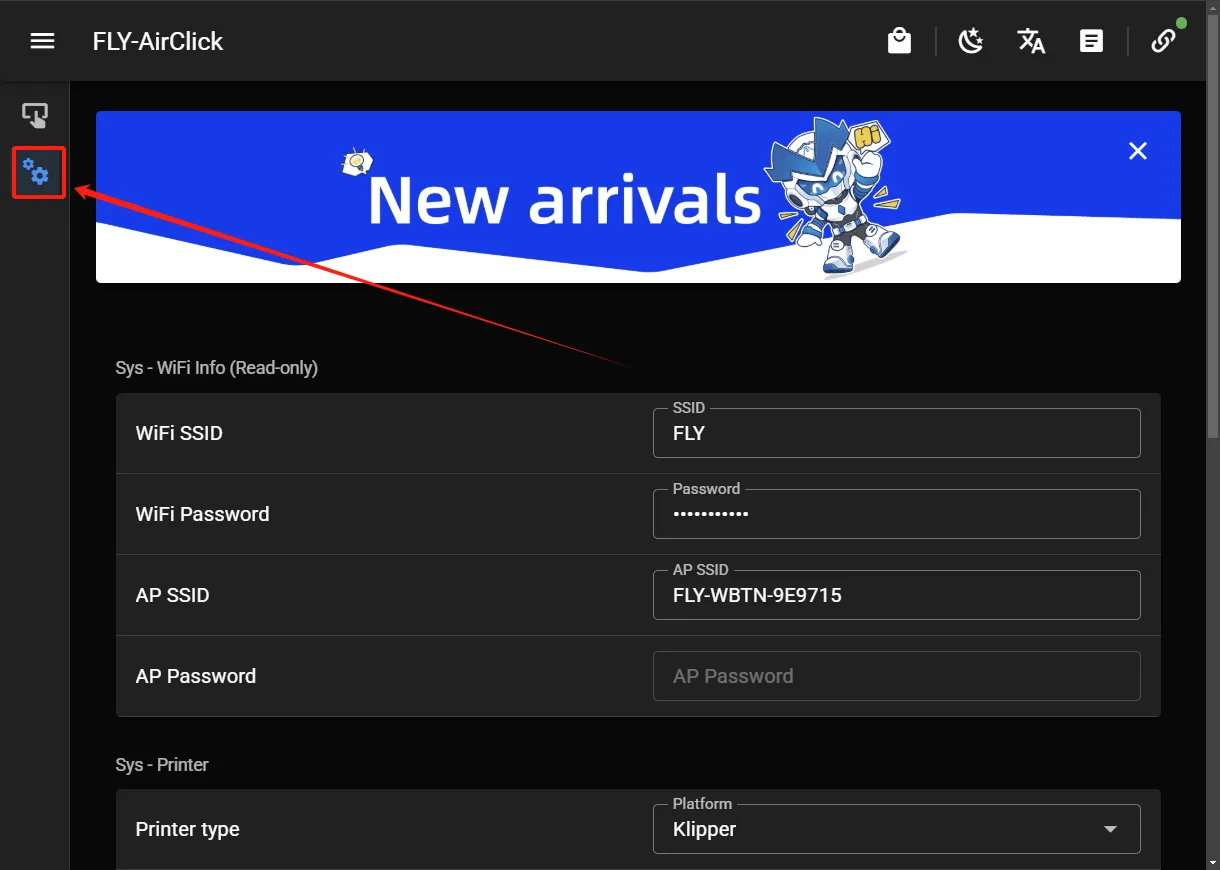
- Select
KlipperforPrinter Type. - Enter the IP address of the klipper machine in
Moonraker IP. - Enter the port of the klipper host in
Moonraker Port. The default is7125. If the host uses other ports, you need to enter the corresponding port yourself. - Ignore
Apikey. It is not supported for the time being.

- After configuring as shown in the above figure, click
Submitin the lower right corner to save the configuration. - After a correct connection, a prompt will appear at the top of the web page.

- If the connection fails:
- Check if the IP address and port are correct.
- Check if the printer and AirClick are connected to the same network.
- Check if the klipper host is running normally.
- Check if the browser can open the web page of the klipper host.