Adding a USB Camera
Notice
- You need to have the
crowsnestservice installed, for example, systems like lite2 and mini pad do not have it installed by default. - You need a plug-and-play camera that does not require drivers, these can be used on systems like Linux and Armbian without needing to install additional drivers.
- This tutorial uses the latest Klipper, Crowsnest, and Fuidd as examples. If you are using other methods, you will need to research them yourself.
Open Configuration
tip
- The camera ID can vary depending on the system, we just need to determine an ID that won't change.
-
In Fuidd, find the configuration file and open
crowsnest.conf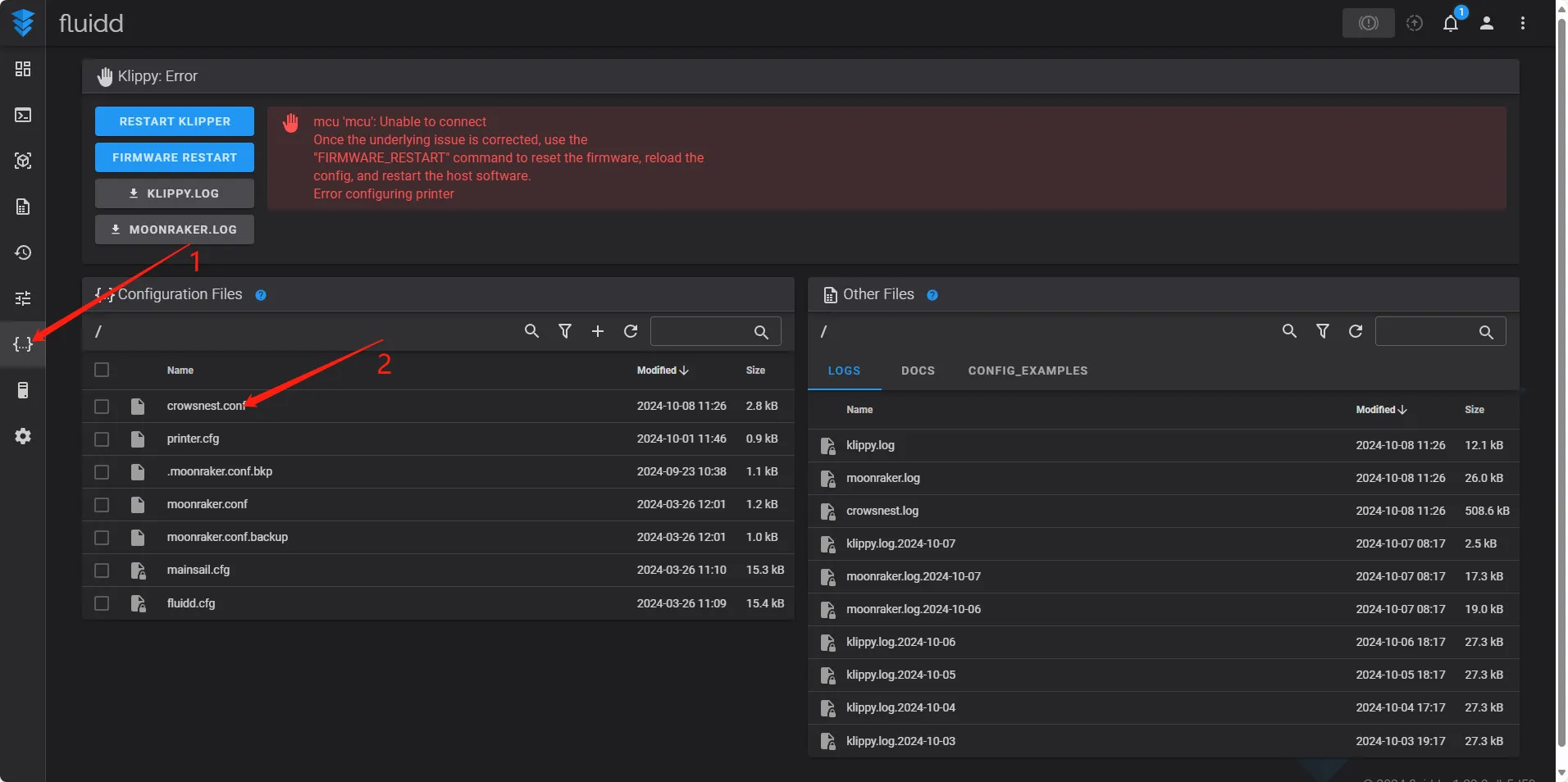
-
Find
device:and delete the ID after it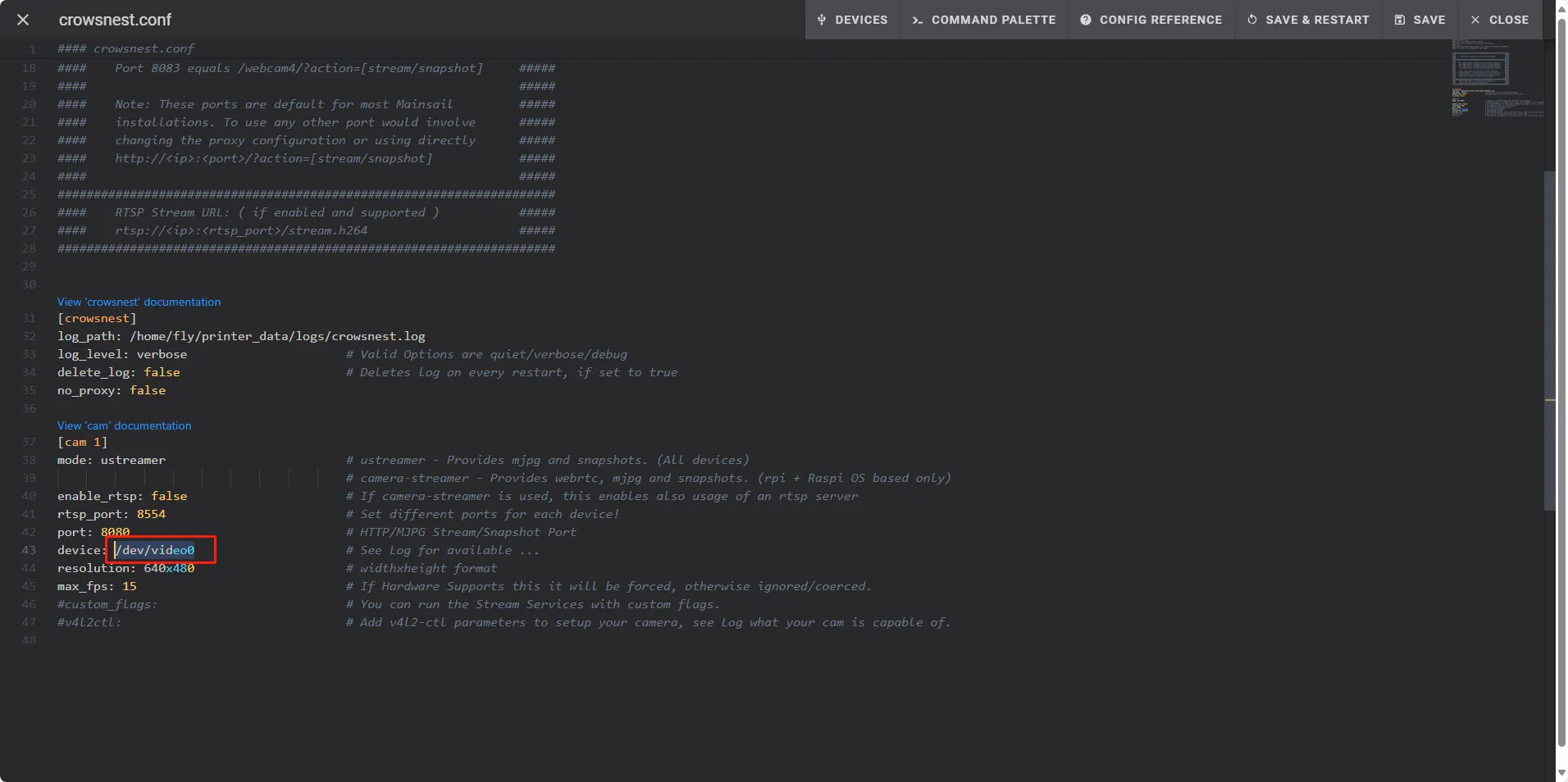
Search for Camera ID
tip
- Make sure the camera is connected to the host machine.
- Click on the top
DEVICES, then clickVIDEO, and finally click refresh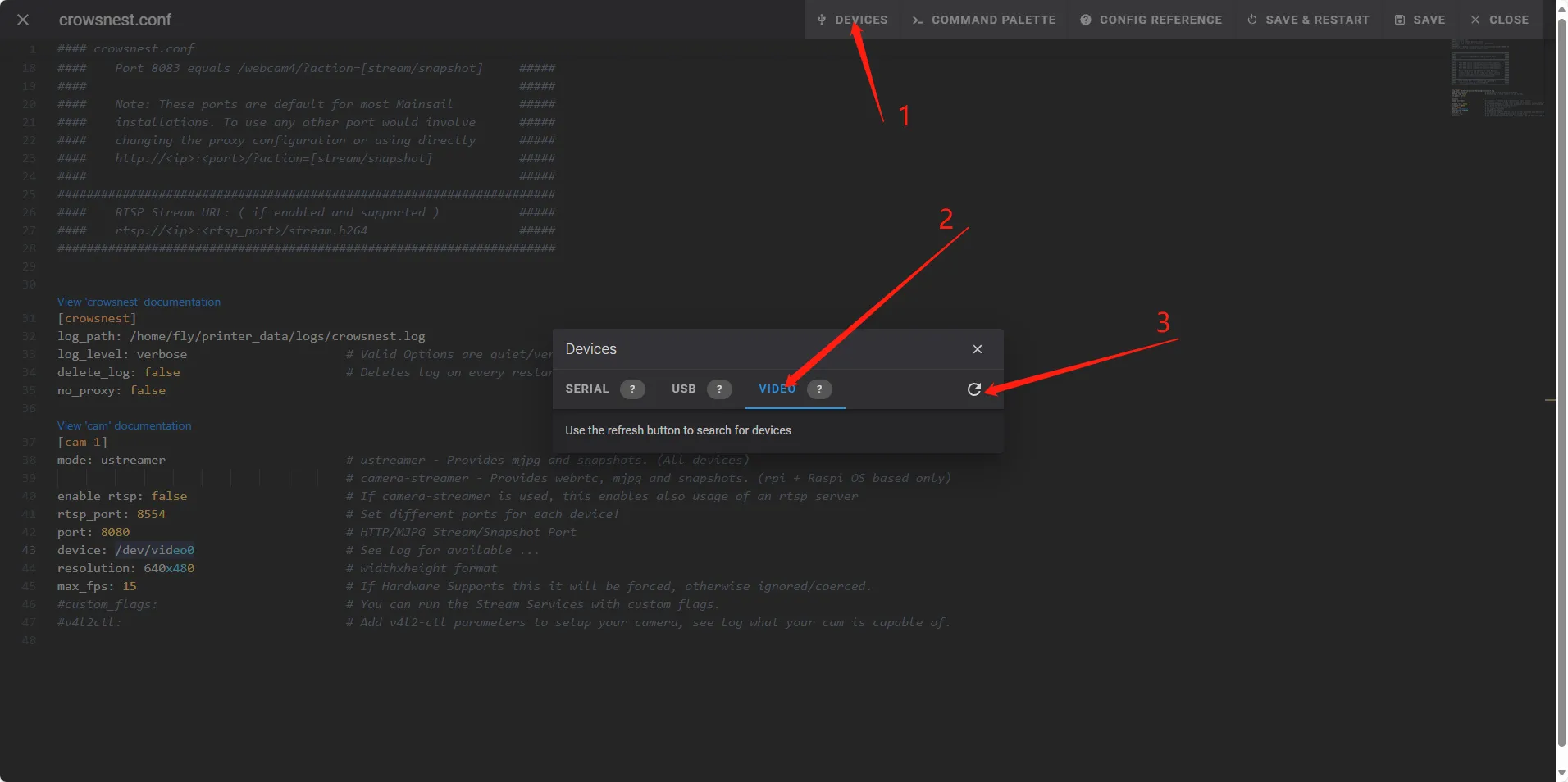
- Find
path_by_idand copy the line that follows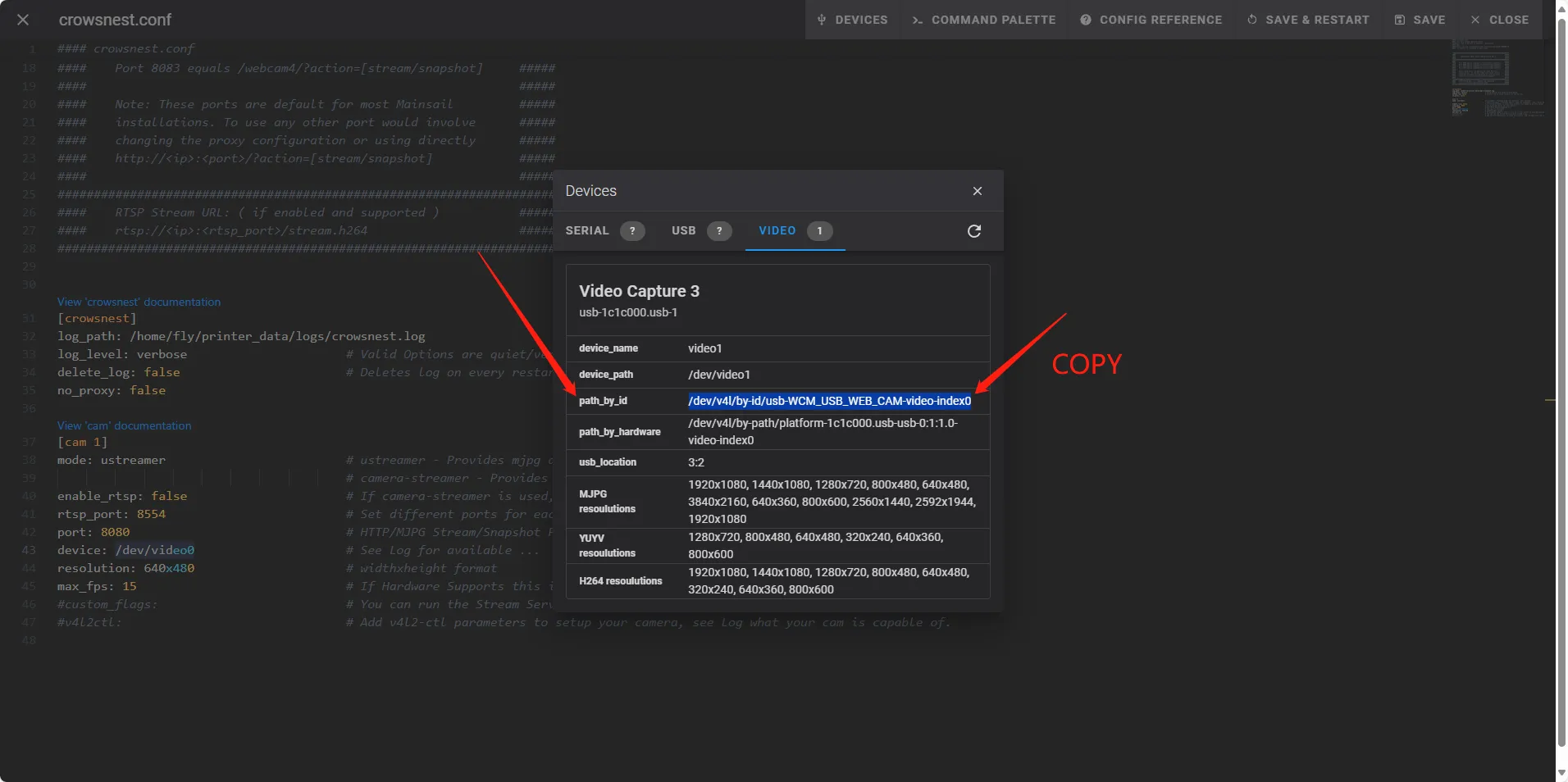
Add ID
- Add the ID and save the configuration
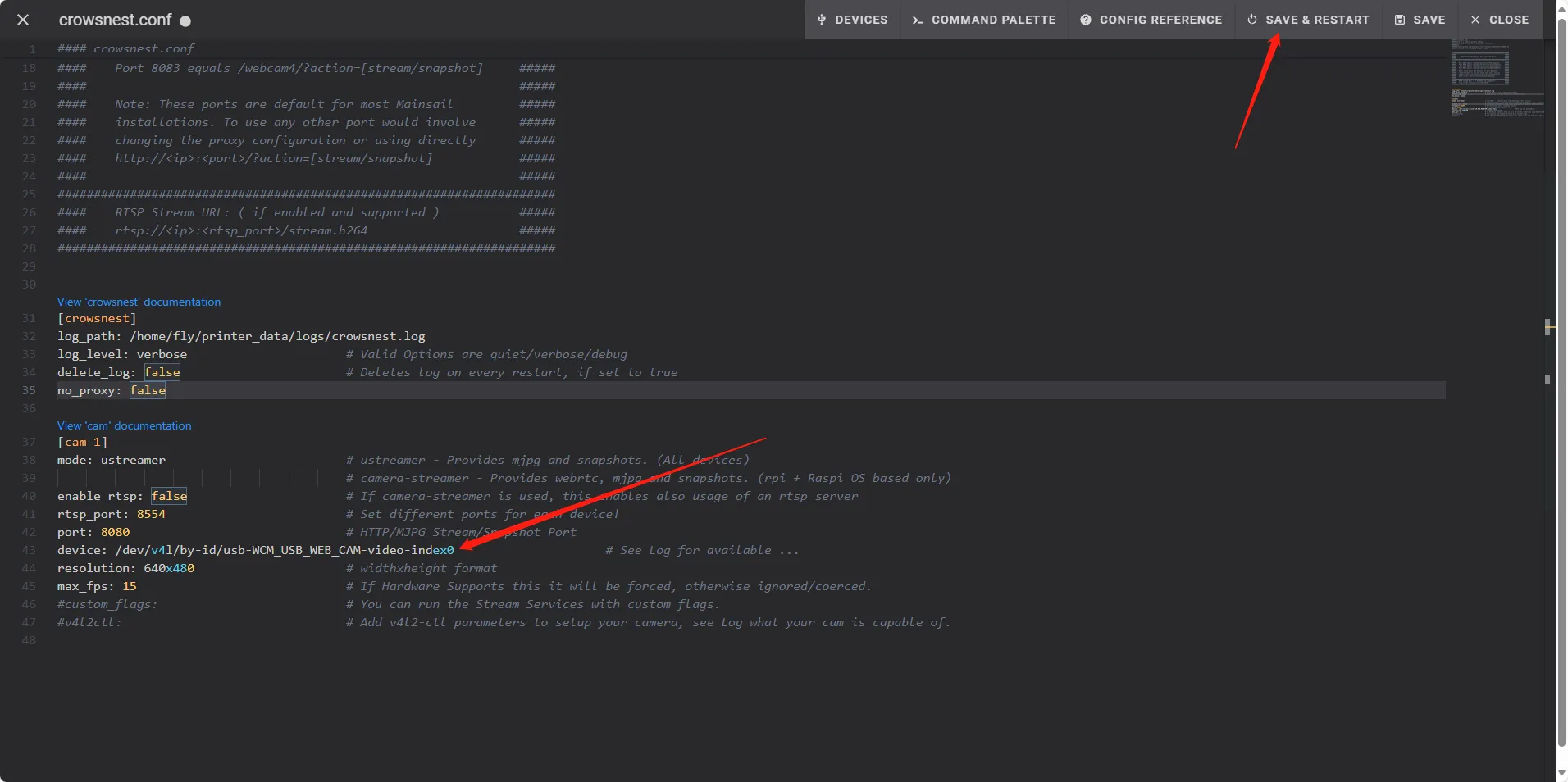
Enable Camera
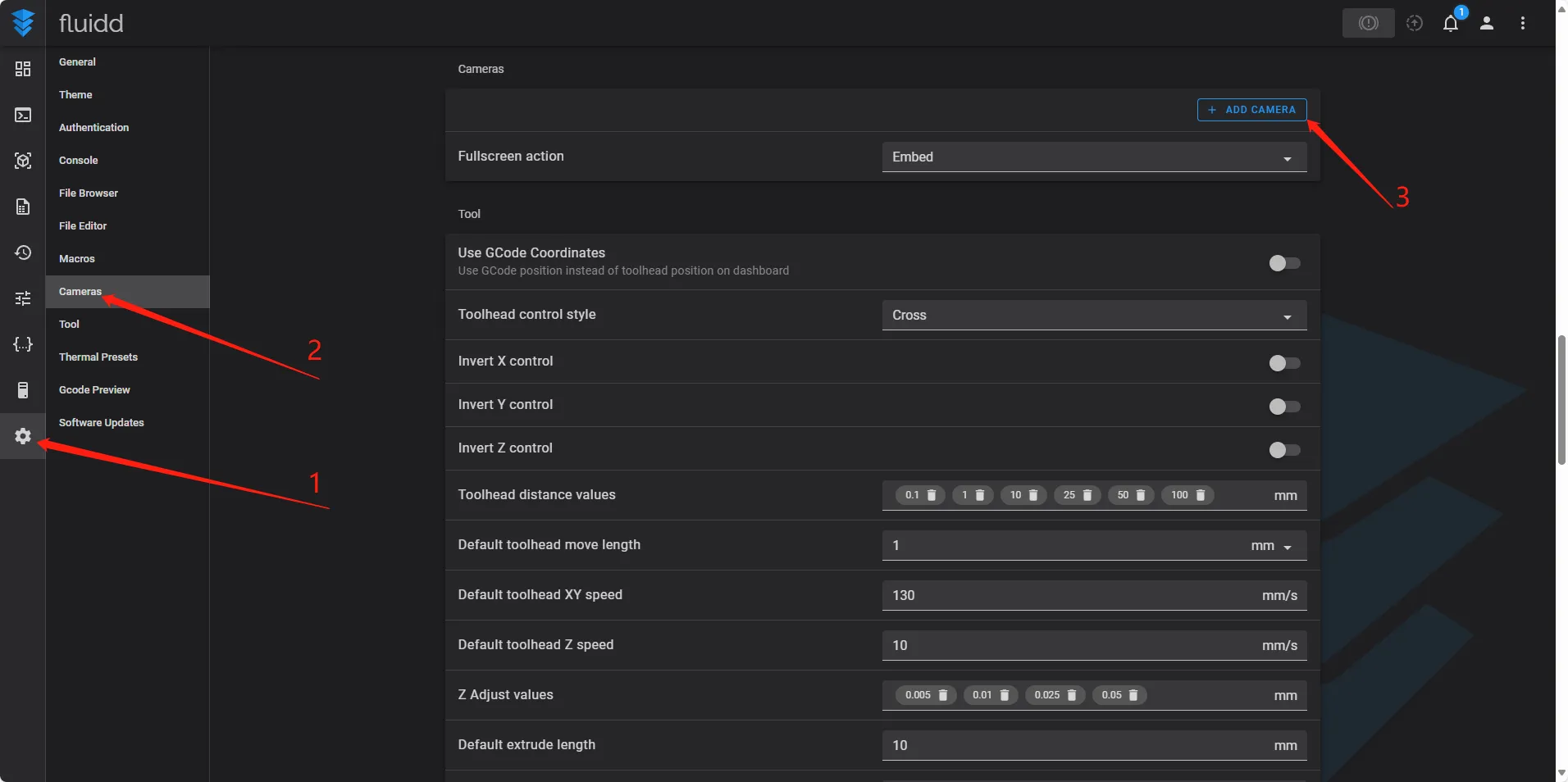
- Click on settings, select the camera, and then click add camera
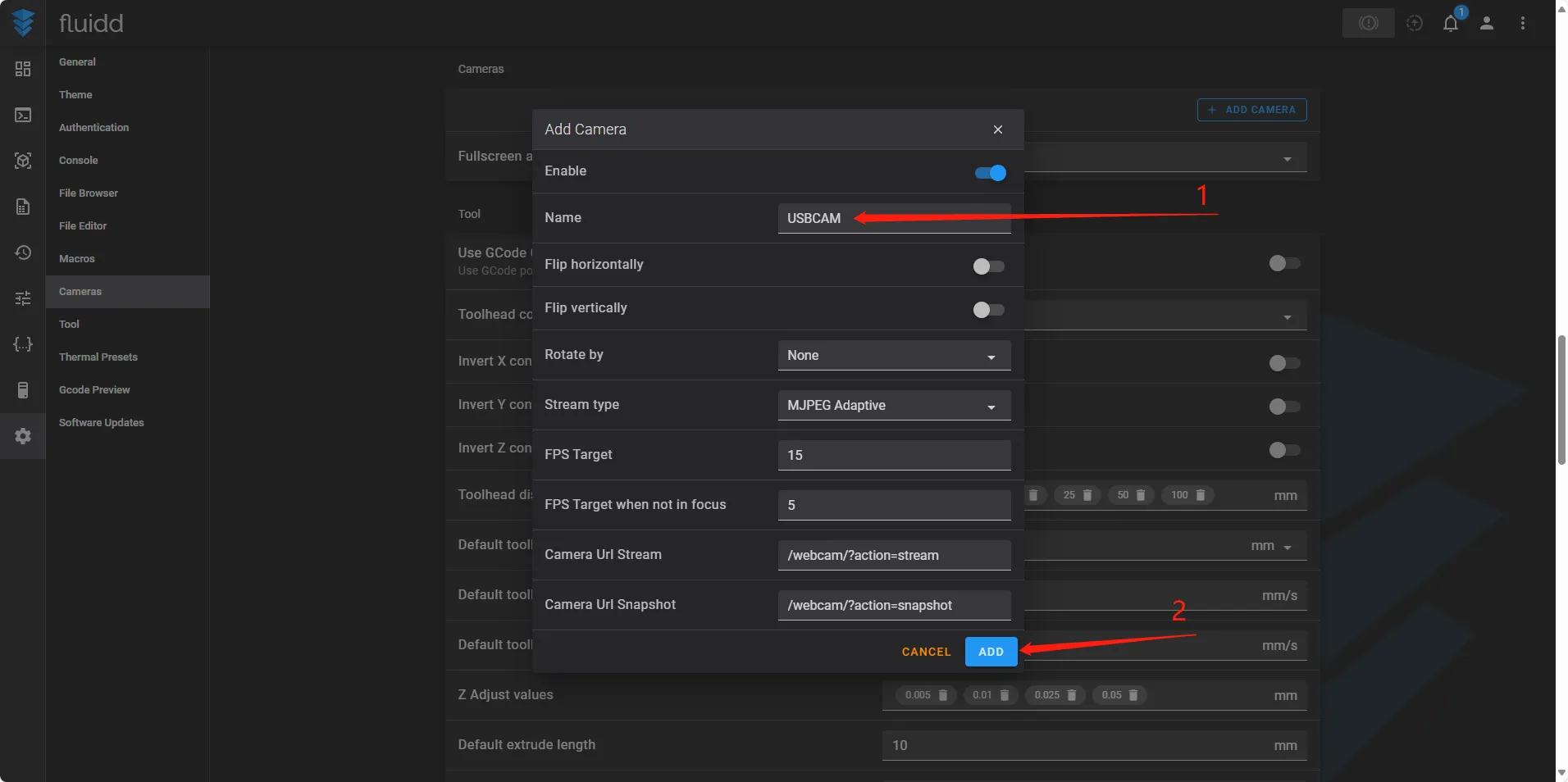
- Enter your preferred name and click save
Check if Enabled
- Click on the dashboard, and a camera feed should appear normally
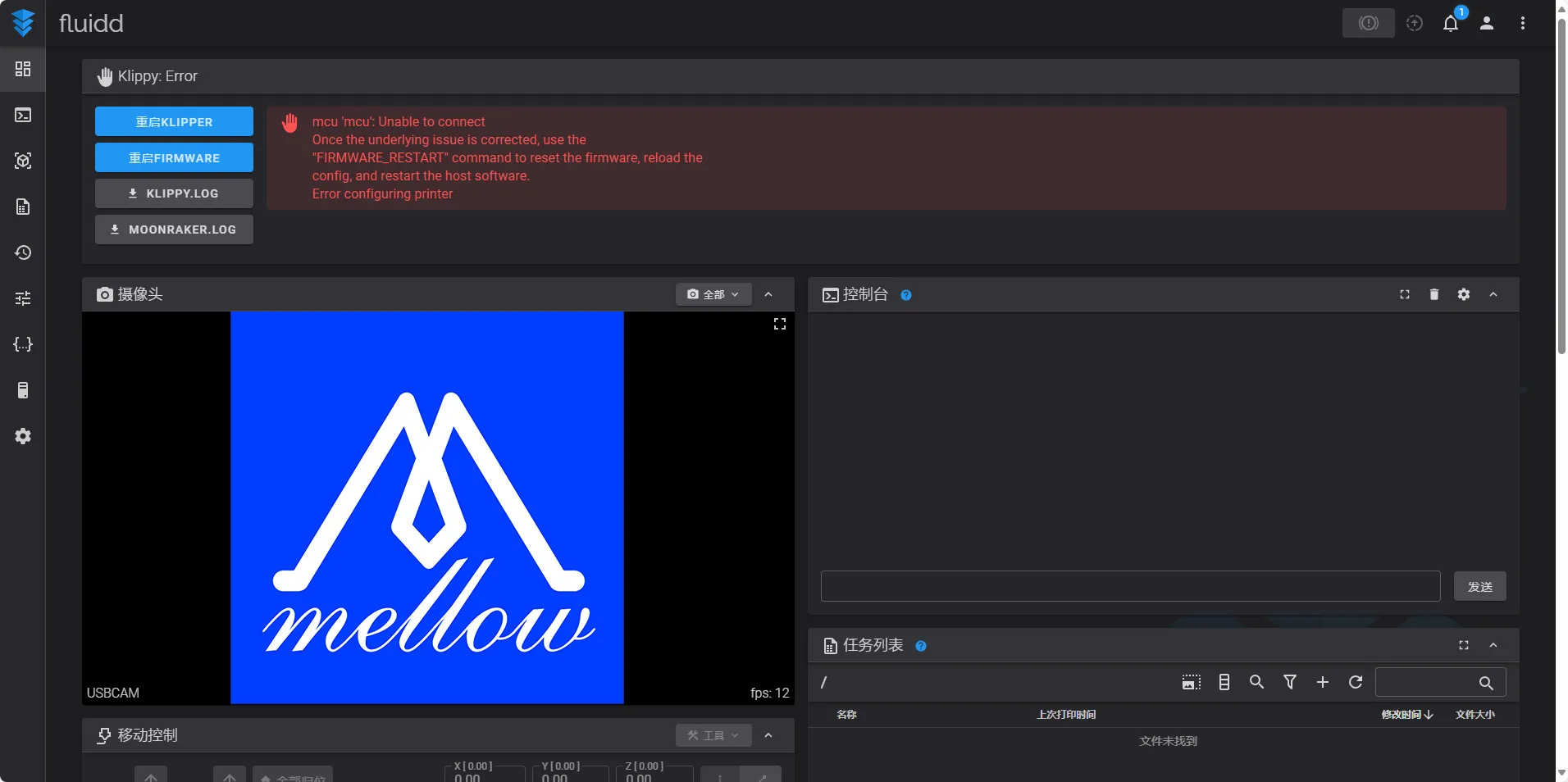
- If it doesn't show up, restart the system