update
Incremental Upgrade (OTA)
- On the Halo device information page, click to check for updates at the version number location. If there is an available update, a message will pop up. At this point, click Update to start the upgrade. Do not power off during the process; wait until the progress reaches 100%, and it will automatically restart.
Full Upgrade (USB)
- If a full firmware upgrade is released, you need to use USB to connect the Halo to your computer for the upgrade.
tip
- In a full upgrade, your original settings will not be retained, and all settings will be restored to default.
- Download and extract the USB flashing tool flash_download_tool_3.9.4.zip (click to download)
- Download the firmware Halo firmware download
- Open
flash_download_tool_3.9.4.exe. Note: After opening the flashing tool, a CMD window will pop up first, followed by the flashing tool interface. Do not close the CMD window. - In the flashing tool, select
ESP32-S3inChipType: - In the flashing tool, select
DevelopinWorkMode: - In the flashing tool, select
USBinLoadMode: - Finally, click
OK, refer to Figure 1 below

tip
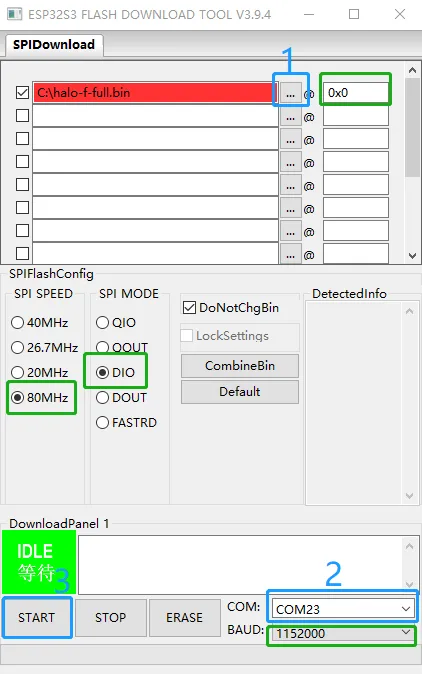
- The
green selected areain Figure 2 must match the image exactly; do not modify it yourself.
- Connect the Halo to your computer via a USB-TypeC cable.
- Click the
blue area 1button in Figure 2 to select the downloaded firmware. - Click the
blue area 2in Figure 2 to select the Halo's serial port (if not visible, hold down theBbutton on the back of the Halo while connecting to the computer). - Click the
blue area 3in Figure 2 to start flashing. Wait for the flashing to complete before restarting the Halo to finish the full upgrade (do not disconnect the Halo’s cable until prompted that flashing is complete).