Connect to Host Machine via SSH
- You can connect to the device using serial port or WIFI
- Please prepare in advance MobaXterm_Personal or other SSH terminal tools
- Please ensure that the SD card or M2WE has burned the corresponding host machine system
- If the host machine cannot start normally, please remove all external devices such as drivers, limiters, fans, etc.!
- Finally, connect to SSH via the network for convenient firmware compilation!
- For firmware compilation, please refer to the tutorial on connecting the host machine via WIFI or Ethernet cable
- Serial Port Connection
- Network Connection
Connect to Host Machine SSH via Serial Port
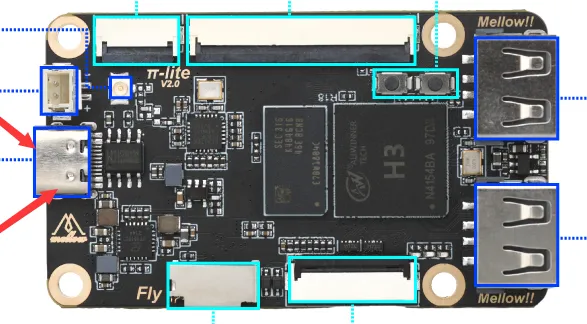
- Use a USB Type-C cable to connect the FLY's host machine to the computer
- For other host machines, please query the connection method yourself!!
- FLY-Pi Lite2
- FLY-Pi Lite2 ports
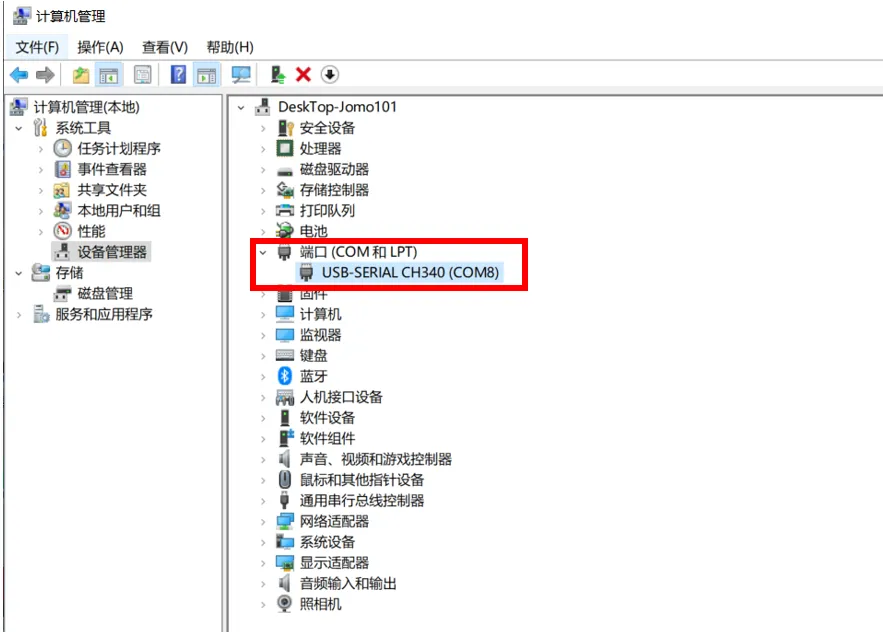
- If the motherboard is properly connected to the computer, open Device Manager, and you will see the CH340 port
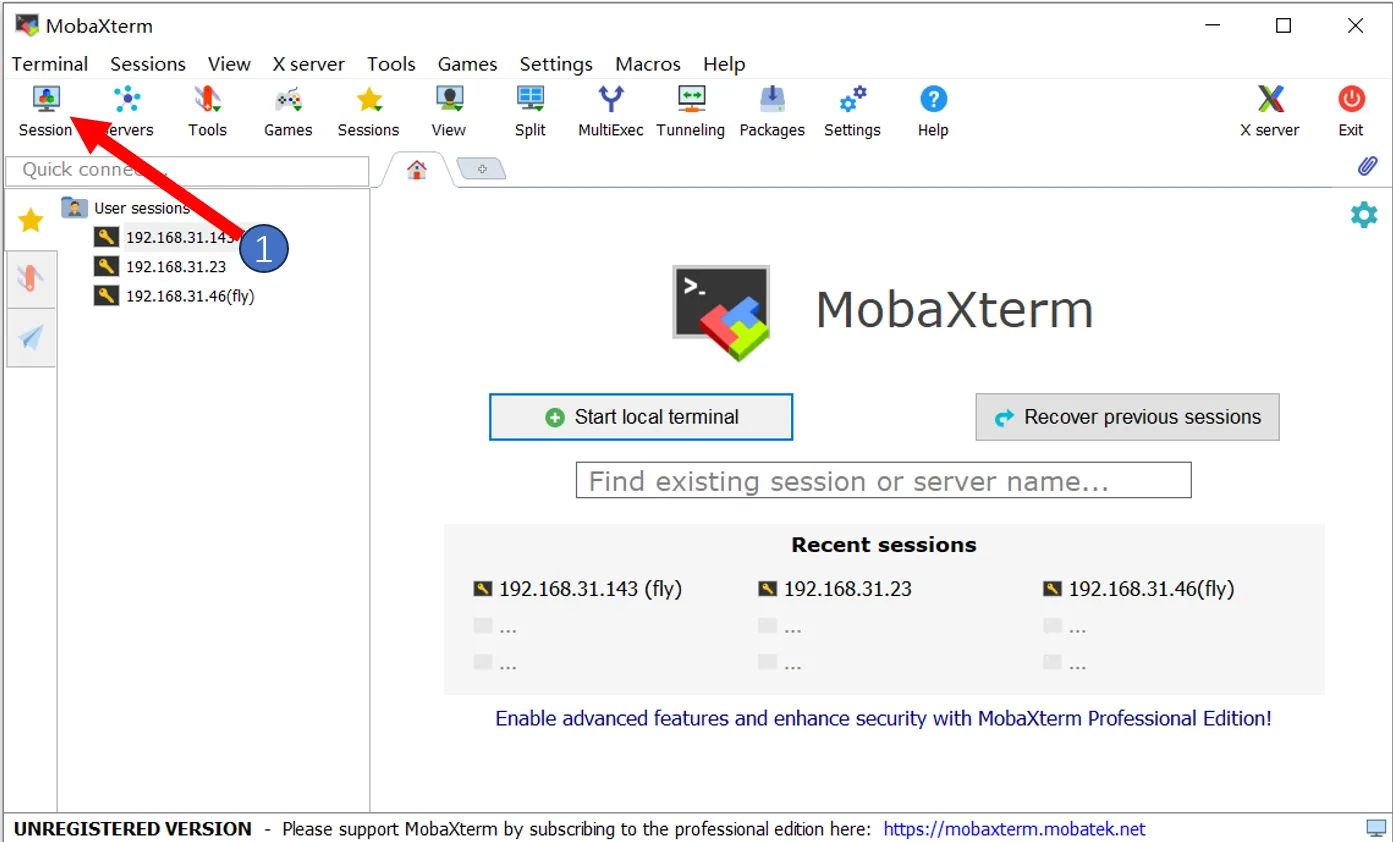
- Open
MobaXterm, and set it up as follows, select the port seen in Device Manager

- If everything is normal, you will see the boot screen
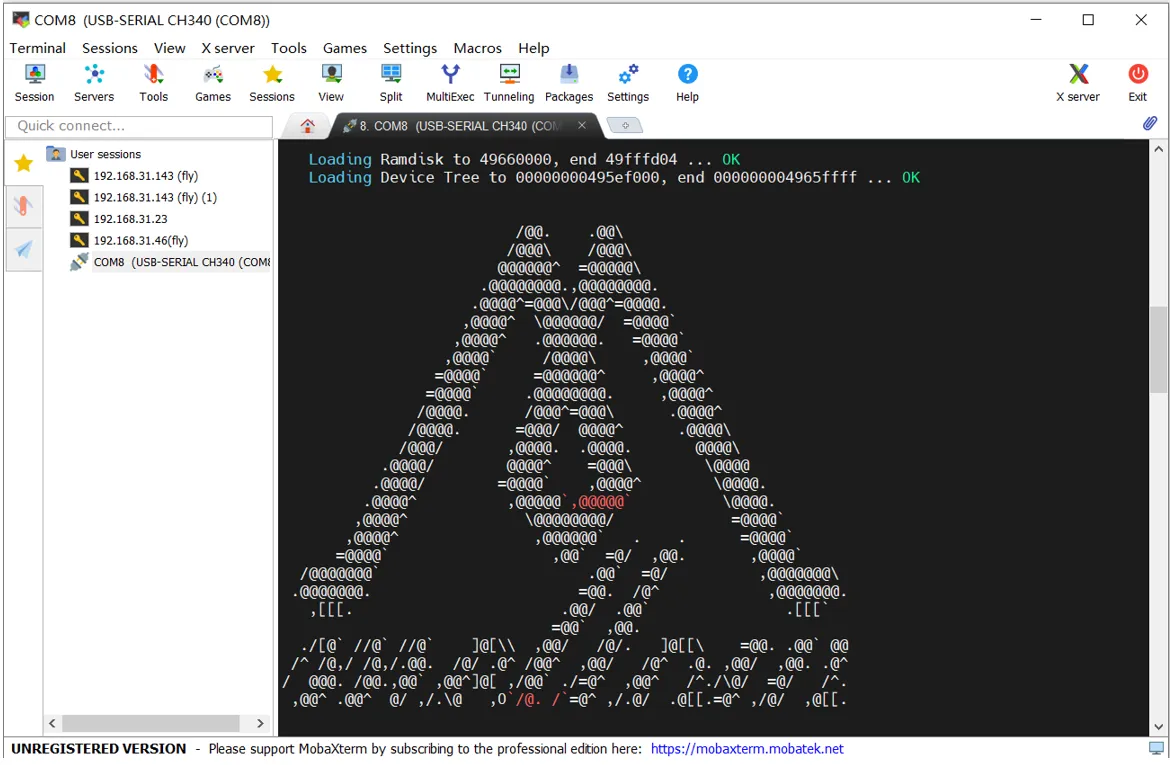
- Wait a moment, and if you see this screen, it means the system has started
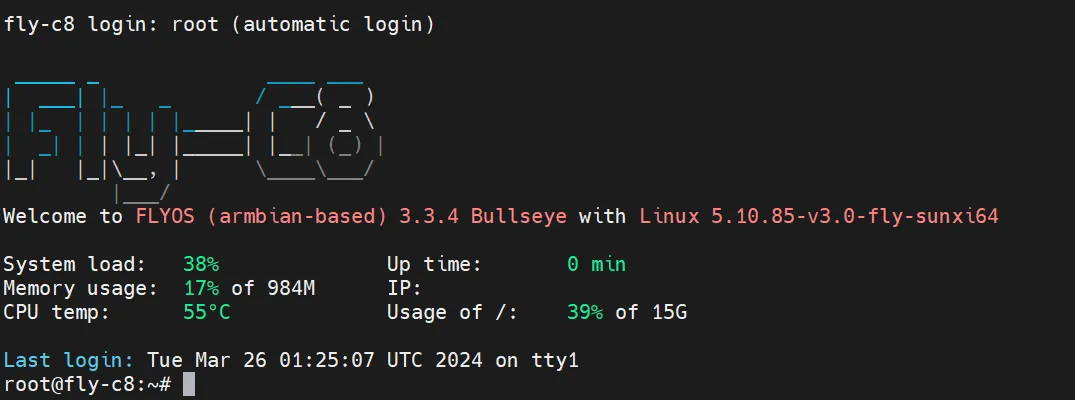
If after a few minutes, as shown below, there is no display on the interface, press the Enter key a few times
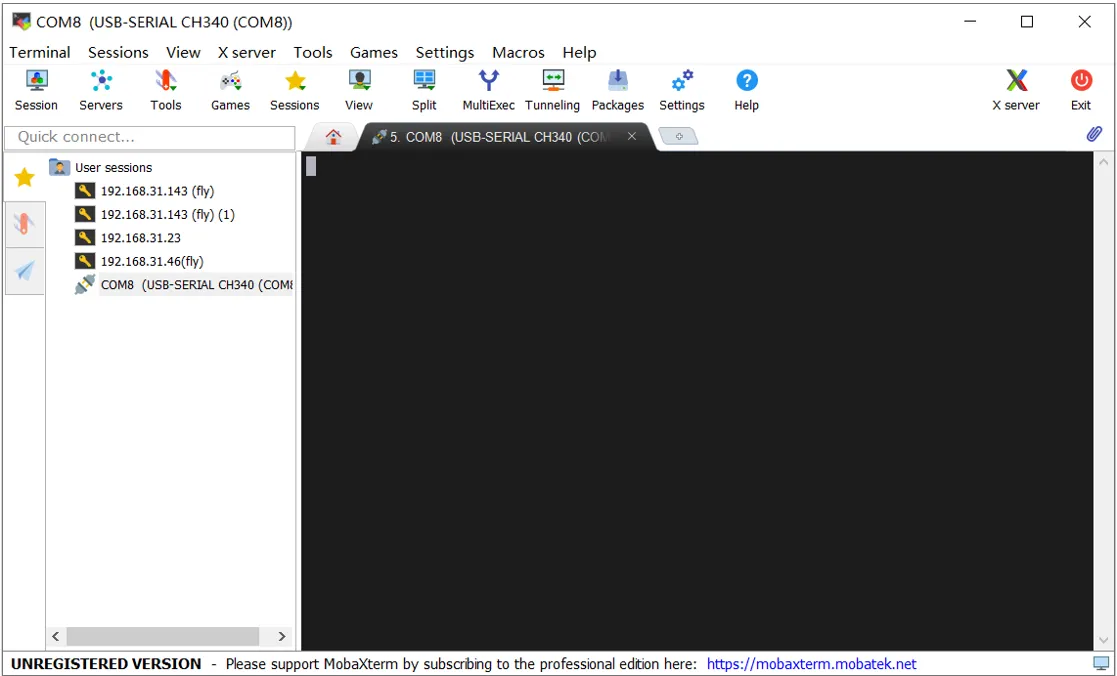
After pressing Enter, you will see the following content
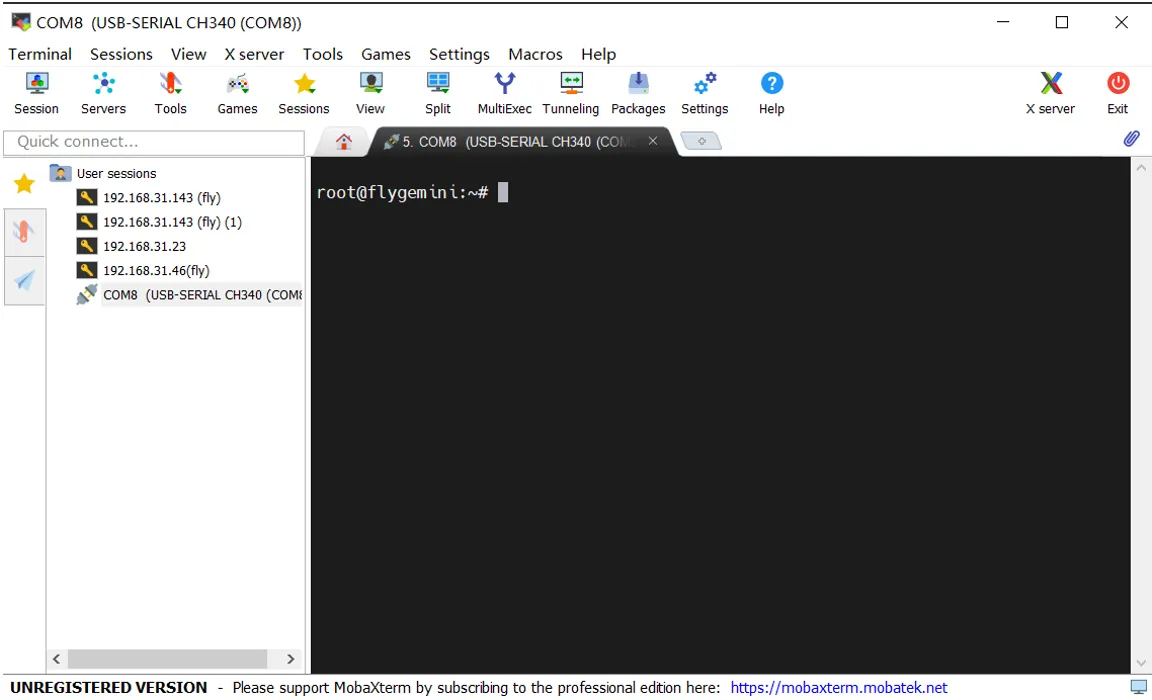
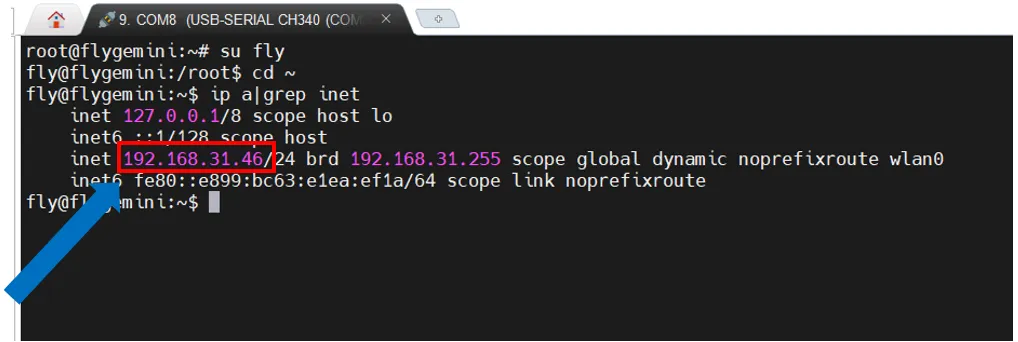
- To check the IP address, enter
ip a | grep inetin SSH and press Enter. Find the IP address that matches your router in the returned content
Connect to Host Machine SSH via Network IP
- Please log into the router backend connected to the host machine
- Ensure that the system has started normally
- Make sure you know the username and password of the host machine, the FLY system defaults to username fly and password mellow
- If the motherboard has started and is connected to the network, you can use the IP to connect to SSH
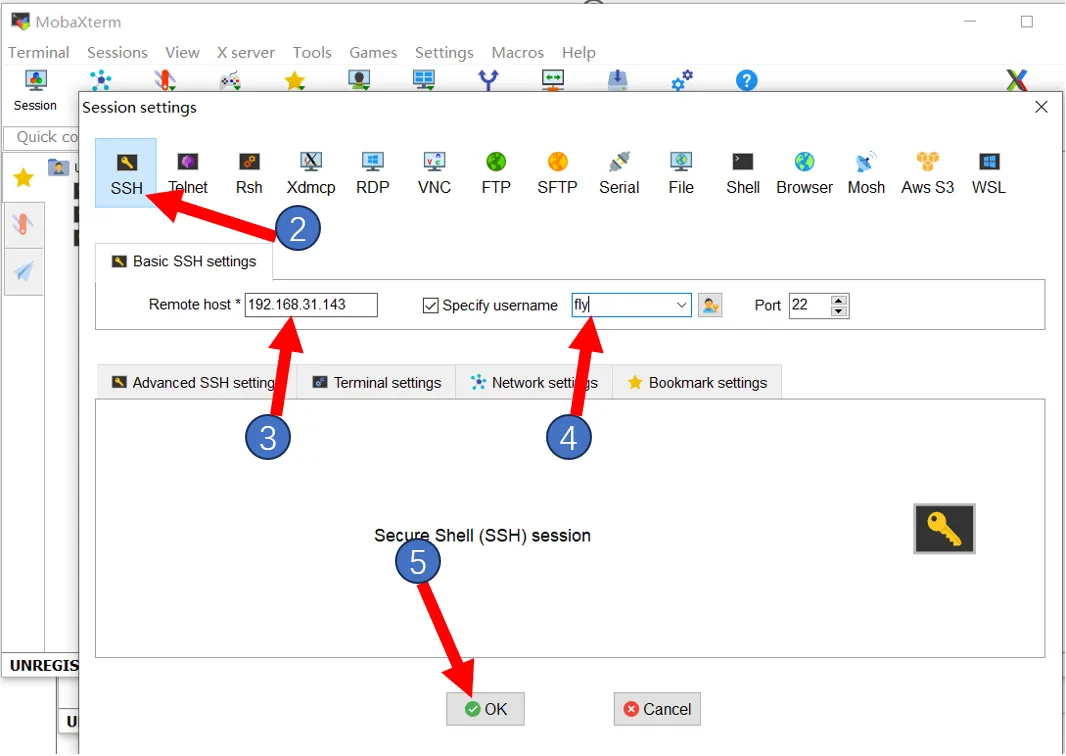
- Open MobaXterm, and set it up as follows, fill in the IP seen previously, or view it in the router backend
Note: In step 4, input the username of the host machine
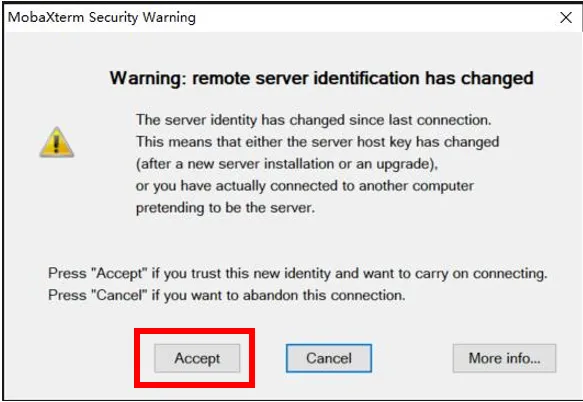
- The first connection will pop up this window, click
Accept
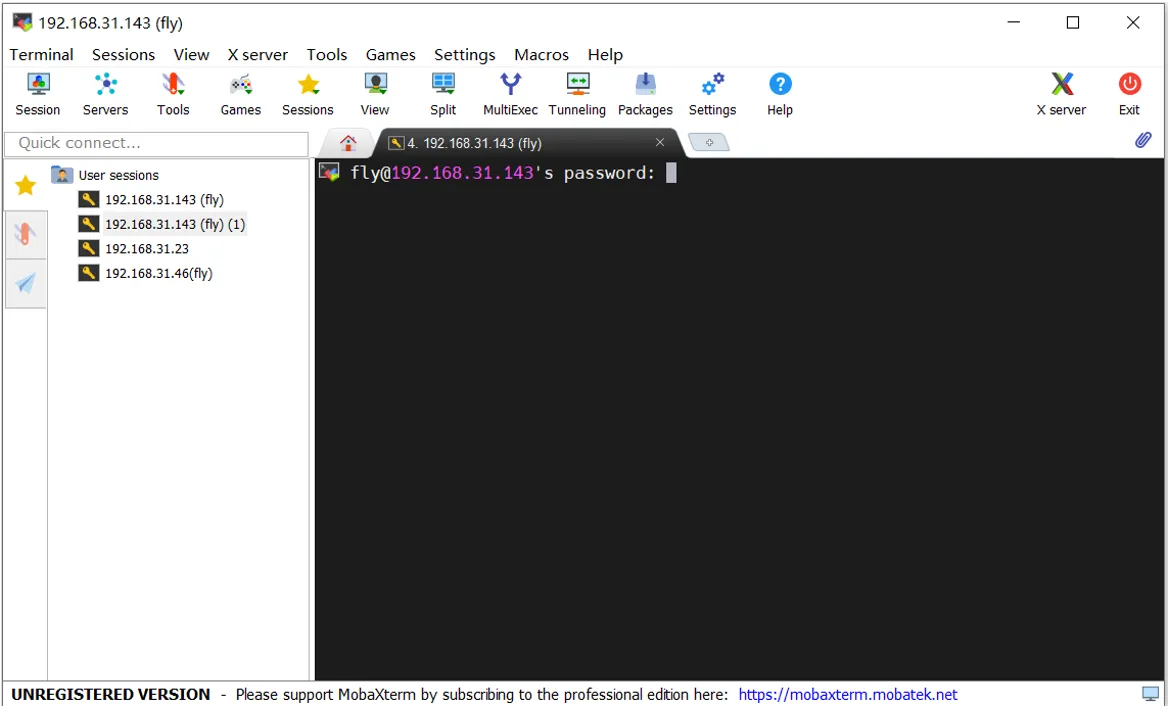
- Prompt for password, enter the host machine password and press Enter
Note: Here, the entered password is not visible, just press Enter after typing
FLY system defaults, username: fly, password: mellow
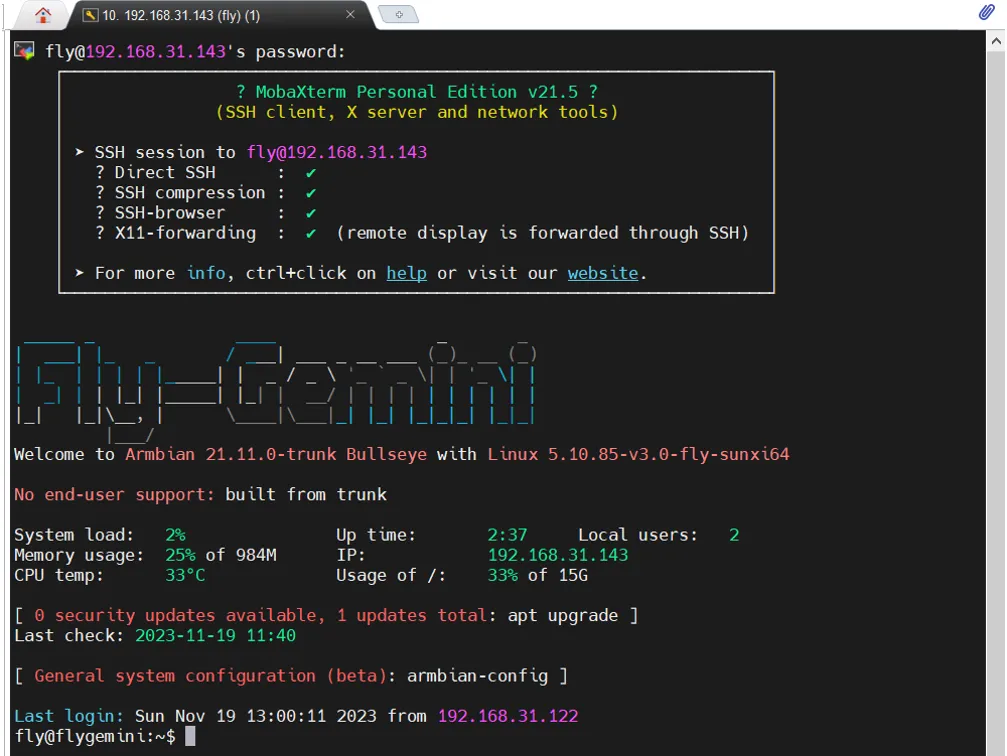
- Successful login